Troubleshoot Connecting to Salesforce
If you are having problems connecting to Salesforce, here are some tips to help you resolve any issues.
Jetstream IP Addresses
If you need to allow IP addresses for your org, Jetstream will use one of the following addresses:
74.220.50.2274.220.50.2374.220.50.24
On Salesforce, configure as 74.220.50.22 to 74.220.50.24.
Prior IP Address Ranges:
Prior to May 28, 2026:
74.220.58.0/24- On Salesforce, configure as
74.220.58.0to74.220.58.255
- On Salesforce, configure as
74.220.50.0/24- On Salesforce, configure as
74.220.50.0to74.220.50.255
- On Salesforce, configure as
Installing Jetstream
Starting in September 2025, Salesforce requires that all 3rd party connected apps are installed in your org for any new authorizations.
Refer to the Installation Instructions for additional information.
Troubleshooting Tips
If you have issues adding your org, here are some likely causes and solutions.
| Problem | Possible Causes | Solution |
|---|---|---|
| You are unable to login, your username and password is not accepted from Salesforce | Your org may have a login restriction that only allows access by logging in using the custom domain. | This setting can be found in Salesforce under Setup → My Domain → Policies → Prevent login from https://login.salesforce.com. If this is set to true, then you will want to use the Custom Login URL option and provide custom domain shown on the Current My Domain URL on the setup page. |
| You receive an error message after successfully logging in |
| OAuth configuration settings can be managed in
warning There is a Salesforce bug where the Connected App may not show up in Connected App OAuth Usage even after attempting to login. To resolve this, you may need to Match Production Licenses to Sandbox without a Refresh to ensure the Approve Uninstalled Connected Apps permission exists in the Sandbox. See Salesforce Documentation for more information. Alternatively you can manually install our connected apps using the links below even if the app is not listed in the OAuth Usage page: Replace Jetstream Web Application <your_domain>/identity/app/AppInstallApprovalPage.apexp?app_id=0Ci4S000000CaUB&app_org_id=00D4S000000pHDFJetstream Desktop Application <your_domain>/identity/app/AppInstallApprovalPage.apexp?app_id=0Ci4S000000CadS&app_org_id=00D4S000000pHDFJetstream Authentication (logging into Jetstream using Salesforce) <your_domain>/identity/app/AppInstallApprovalPage.apexp?app_id=0Ci4S000000Cact&app_org_id=00D4S000000pHDF |
| When you click a Salesforce link, you are required to "Choose a Verification Method" to continue to Salesforce. | You may have very strict session settings in Salesforce, such as "High Assurance". | By default, Jetstream uses Frontdoor to login using your existing Jetstream session. This can be disabled by navigating to your settings and enabling the option to Don't Auto-Login on Link Clicks. 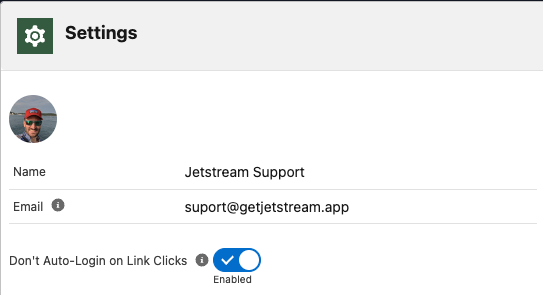 |