Permission Analysis
Permission Analysis scans the profiles and permission sets you select and hands you a ranked list of access problems: over-exposure, field security that is not backed by object access, dangerous system permissions, and permission sets nobody is assigned to. Every grid it produces can be downloaded as Excel, CSV or JSON, so the output doubles as audit evidence.
It is completely read-only. Nothing in Permission Analysis changes your org, so it is safe to run at any time. Where Manage Permissions lets you edit object and field permissions, Permission Analysis reads, scans and exports the full picture.
Permission Analysis is available on a paid Jetstream plan. Upgrade from within Jetstream under Settings → Billing.
What people use it for
- Quarterly access reviews. Export object, field and system permissions for every profile in scope and attach the file to your review record.
- Pre-audit preparation. Find and document every grant of Modify All Data, View All Data and Export Reports before somebody else does.
- Offboarding and role changes. See exactly which permission sets a user holds, including the ones they inherit through a permission set group.
- Cleanup after a migration or merge. Surface permission sets with no assignments, tabs a container makes visible without granting read on the underlying object, and field security that the same container never grants object access for.
- Troubleshooting "why can this person see that?" Jump from a profile, permission set, object or field straight into the matching Salesforce Setup page.
Requirements
- A paid Jetstream plan.
- Read access to the permission setup objects Jetstream queries, which usually means View Setup and Configuration. Permission Analysis is read-only and does not call the Metadata API, so Modify All Data and Modify Metadata are not required. Jetstream may still show its metadata-access banner on this page; that banner is advisory and is not what gates this feature. See Required permissions for the full breakdown.
Running an analysis
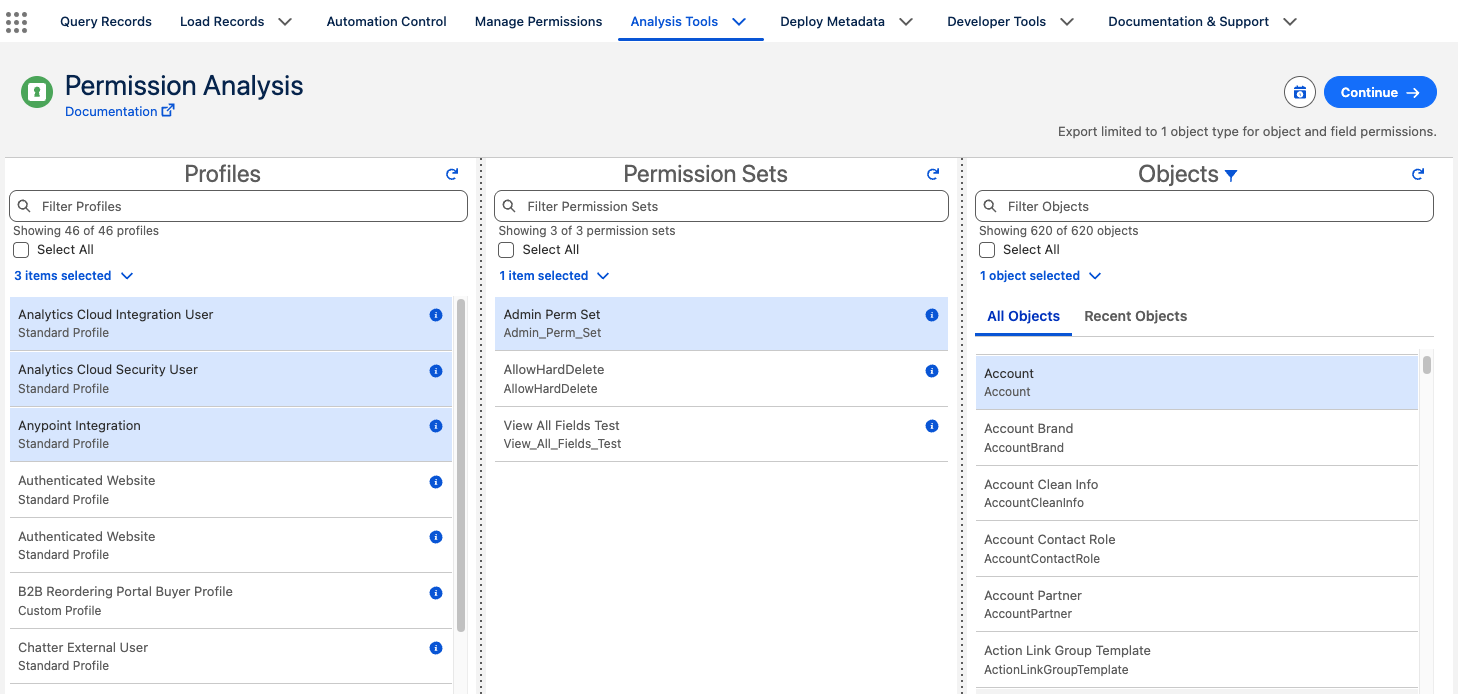
The selection screen is the same picker used by Manage Permissions.
- Choose at least one Profile or Permission Set — you can mix and match. This is required.
- (Optional) Choose one or more Objects to narrow the Object Permissions and Field Permissions rows to specific object types. If you leave objects empty, the job loads all object and field permission rows for your selection.
- Click Continue.
Jetstream starts a background Permission Export job. You can leave the page — keep the browser tab open — and the run will appear in your Background Jobs. When it finishes, the results open automatically.
From the Manage Permissions selection screen you can jump straight here with the Open in Permission Analysis button, carrying your current selection over.
Reading the results
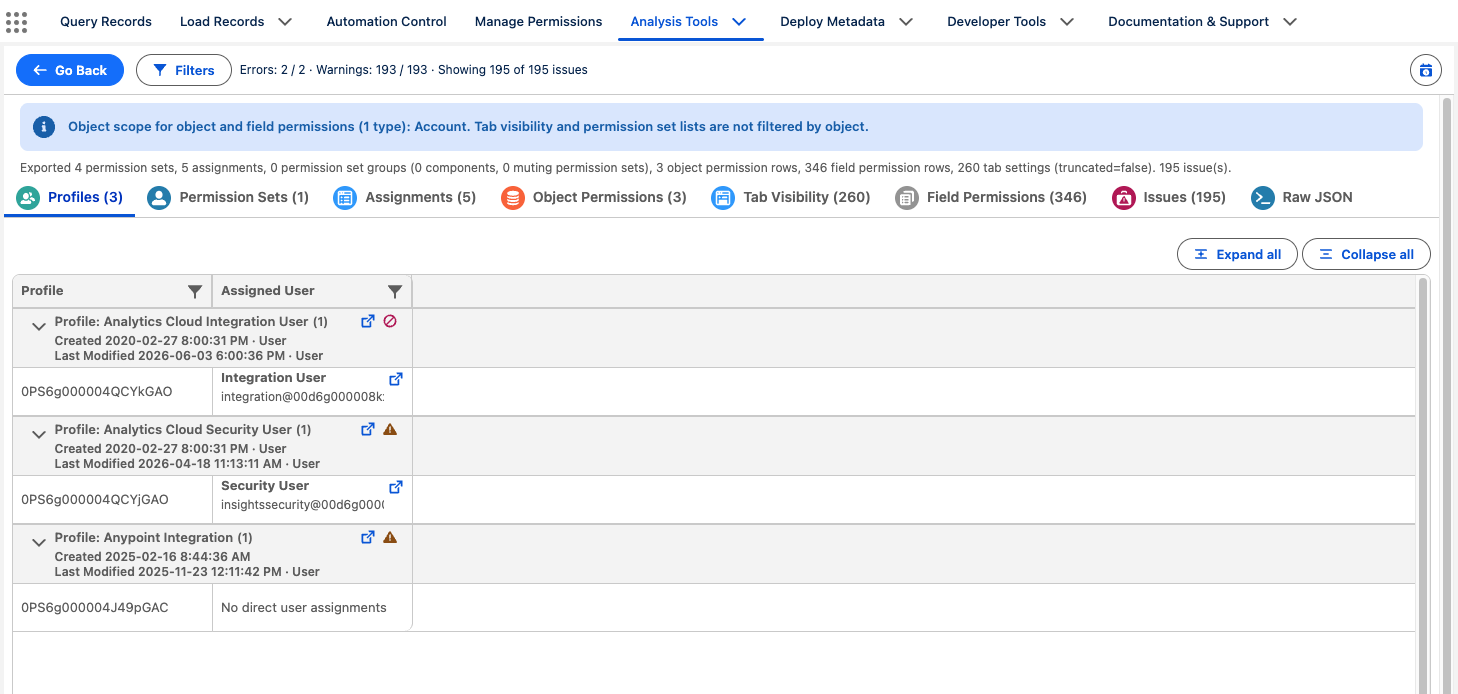
Results are organized into tabs, each showing a count. Which tabs appear depends on what you selected.
| Tab | Shows |
|---|---|
| Profiles | The profiles you selected, expandable to their user assignments, with Setup links. |
| Permission Sets | Standalone permission sets, with assignments and Setup links. |
| Assignments | Which users have which permission sets (including via permission set groups), with active/inactive and license details. |
| Permission Set Groups | Groups, their component permission sets, and any muting permission sets. Only appears when groups are involved. |
| Object Permissions | Read, Create, Edit, Delete, View All, and Modify All for each object, grouped by profile / permission set. |
| Tab Visibility | The visibility value of each tab per profile / permission set. |
| Field Permissions | Read and Edit access for each field, grouped by profile / permission set, then object. |
| Issues | Automatically detected findings — see Issues below. |
Every grid supports Expand all / Collapse all, a quick-filter search box, and per-column filters. Object and field cells deep-link into Salesforce Setup (Object Manager, Fields & Relationships) — shift-click a cell to skip the popover and jump straight to Salesforce. Cells that have an associated issue are highlighted; click one to see the issues for that specific cell.
Downloading the results
Every table has a download button — above the grid on each permission tree, the export grid and the issues tab, and in the footer of the findings detail modal. You get the same download options as everywhere else in Jetstream: Excel, CSV, JSON, or straight to Google Drive.
On the Issues tab the download follows the Filters bar and your Columns and Group By choices, so narrowing to errors only and downloading gives you just those rows. The grid's quick-filter box and per-column filters change what is on screen but not what is downloaded, so clear them and use the Filters bar when you need the file to match the view. Downloads are the fastest way to hand a finding to the person who owns it, drop a permission snapshot into a spreadsheet for sign-off, or keep a record of what permissions looked like before a change.
Issues
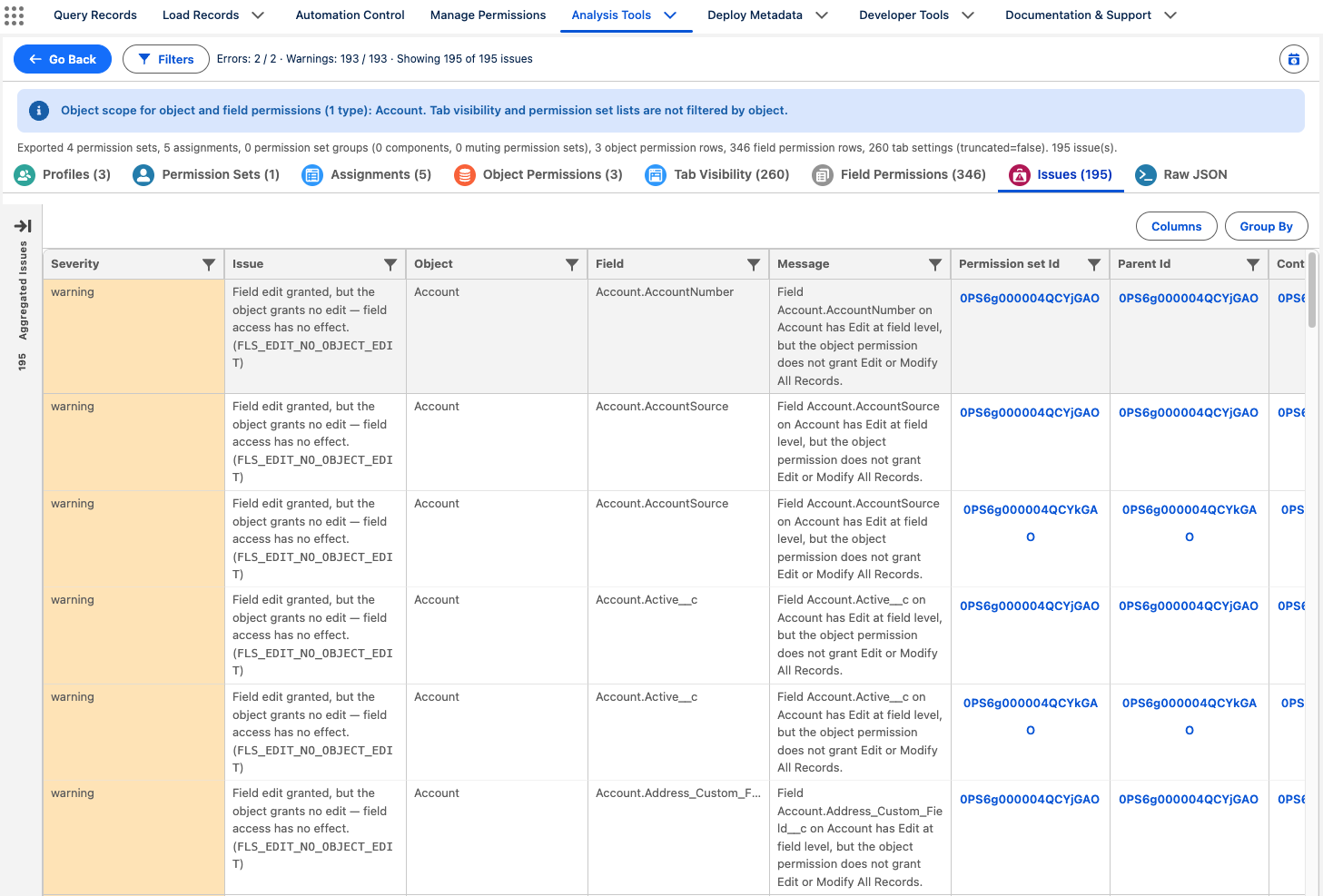
Permission Analysis inspects the exported permissions and reports findings at two severities:
- Error — real over-access or exposure that usually warrants review.
- Warning — an inconsistency, incomplete setup, or cleanup opportunity.
What Jetstream checks for
| Code | Severity | Meaning |
|---|---|---|
OBJECT_MODIFY_ALL_RECORDS | Error | Modify All Records bypasses the sharing model — edit and delete every record of this object. |
SYSTEM_PERM_HIGH_RISK | Error | A high-risk system permission is granted. See the catalog below. |
OBJECT_VIEW_ALL_RECORDS | Warning | View All Records bypasses the sharing model — read every record of this object. |
SYSTEM_PERM_ELEVATED | Warning | An elevated system permission is granted. See the catalog below. |
FLS_READ_NO_OBJECT_READ | Warning | Field read is granted, but this container grants no object read, so access must come elsewhere. |
FLS_EDIT_NO_OBJECT_EDIT | Warning | Field edit is granted, but this container grants no object edit, so access must come elsewhere. |
FLS_WITHOUT_OLS_ROW | Warning | Field permissions exist for the object, but this container has no object permissions row at all. |
OLS_READ_NO_FLS_ROWS | Warning | Object read is granted with no field permissions configured, so default field access applies. |
OLS_EDIT_NO_FLS_ROWS | Warning | Object edit is granted with no field permissions configured, so default field access applies. |
PERMSET_NO_ASSIGNMENTS | Warning | A permission set has no direct assignments and is not part of a permission set group. |
TAB_VISIBLE_NO_OBJECT_READ | Warning | A tab is visible, but the container grants no read on the underlying object. |
FINDINGS_TRUNCATED | Warning | Some findings were omitted to keep the export result size bounded. See the note below. |
High-risk system permission catalog
When any of these is granted to a profile or permission set in your selection, Jetstream raises a finding. Tier 1 permissions are reported as errors, the rest as warnings.
| Tier | Reported as | Permissions |
|---|---|---|
| 1 | Error | Modify All Data, View All Data, Author Apex |
| 2 | Warning | Manage Users, Manage Internal Users, Manage Profiles and Permission Sets, Assign Permission Sets, Manage Roles, Customize Application, Manage Sharing |
| 3 | Warning | Export Reports, API Enabled, View All Users, Manage Data Integrations, Password Never Expires, View Setup and Configuration |
Tier 1 is full data access or the ability to run arbitrary code. Tier 2 is privilege escalation and control over users and configuration. Tier 3 is data egress and setup visibility.
Salesforce effective access is the union of a user's profile and all of their assigned permission sets. Alignment findings compare a field permission against the object permission on the same profile or permission set, then suppress the finding when another permission set that reaches the same users already supplies the missing access — either a sibling in the same permission set group, or another permission set assigned to every one of its assignees.
What Jetstream cannot see is the assignees' profile, and any permission set outside the selection you exported. So an alignment finding means "this container alone does not grant it" — not "this field access does nothing". If you deliberately grant object access on the profile and field access in a permission set, expect to see these as warnings.
Working with the Issues tab
- The Aggregated Issues panel summarizes findings By Issue Code and By Object so you can see where problems concentrate. Click a card to open its details.
- Use Columns to choose which columns are visible and Group By to group findings by None, Severity, Object, Code, or Container.
- The Filters bar narrows findings by export scope (profiles vs. permission sets), assignment status, severity (errors or warnings only), and security layer (object-level vs. field-level). Filters are stored in the URL, so a filtered view can be bookmarked or shared.
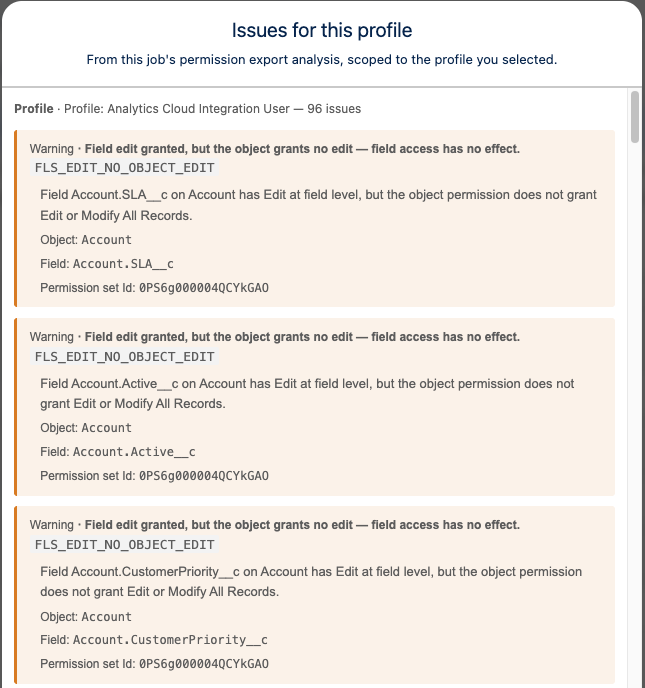
- Click any finding to open a details modal with the full message, the technical code, and the object / field / permission set context.
Re-opening past runs
Completed runs are stored in your browser, per org. Use Export history on the selection screen or the results toolbar to reopen a previous run without re-exporting.
Permission Analysis is processed in your browser and results are cached locally. Very large exports may be truncated to keep the result size manageable; when that happens Jetstream shows a warning so you know some rows may be missing. Errors are always kept ahead of warnings, so truncation never hides an exposure finding — but narrow the permission set or object selection and re-run if you need complete warning coverage.
See also
- Data Analysis (Field Usage) — find unused fields and measure data coverage across your objects.
- Manage Permissions — view and edit object and field permissions.