Data Analysis
Data Analysis (Field Usage) is available on a paid Jetstream plan. Upgrade from within Jetstream (Settings → Billing) to enable it.
Data Analysis answers the question "which fields are actually being used, and which are safe to clean up?" For the objects you choose, Jetstream scans your records and reports, for each field, how many records have a value and what percentage that represents. It then cross-references each custom field against your org's metadata (Where Used) so you can confidently identify unused fields — and delete them when they hold no data and nothing references them.
Requirements
- A paid Jetstream plan.
- Access to the Salesforce Metadata API (used to delete fields) and the Tooling API (used for Where Used). If your user may not have Metadata API access, Jetstream shows a banner — you generally need the Modify All Data or Modify Metadata permission.
- Field usage is computed in your browser and results are stored locally, per org. Scanning reads records through your org's API, which counts against your daily API limits.
Running a Field Usage analysis
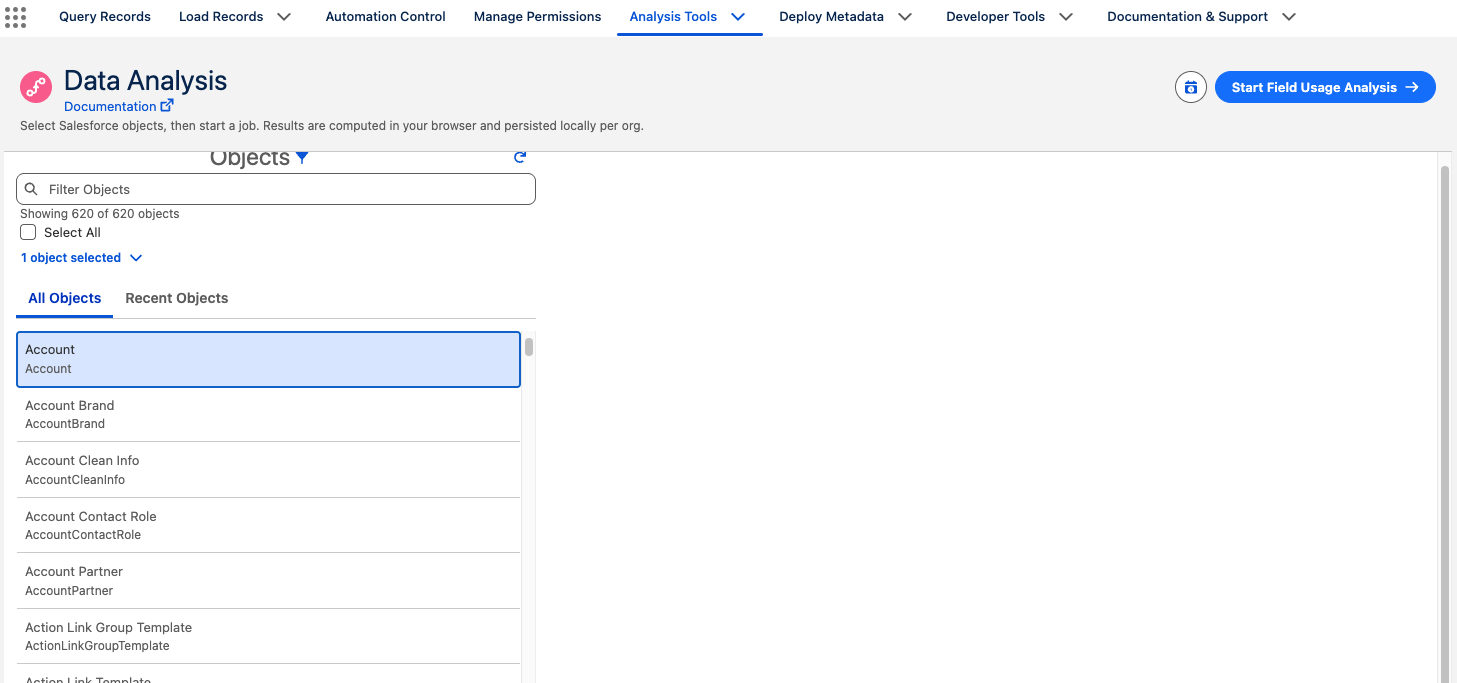
- Select one or more Objects.
- Click Start Field Usage Analysis.
The scan runs as a background job. You can leave the page — keep the browser tab open — and the run will appear in your Jobs popover. When it finishes, the results open automatically.
How usage is measured
By default, Jetstream scans up to 100,000 rows per object. How each field is measured depends on its type:
- Exact count — for fields Salesforce can aggregate, Jetstream uses a
COUNTquery that is exact across the entire object, regardless of how many records exist. These counts are never truncated. - Row scan — for field types that must be read row-by-row (checkboxes, long text, rich text, encrypted fields), Jetstream scans up to the row cap. When an object exceeds the cap, the percentage reflects only the scanned rows and is shown with a
~(for example~4.2%).
A field is considered "filled" when it has a non-empty value. Checkboxes count only checked (true) values, so the percentage tells you how often the box is actually checked.
A high fill rate on a field that Salesforce auto-populates on record creation may reflect defaults rather than real usage. Keep that in mind when deciding what to clean up.
Reading the results
The results open with a Summary line and, when relevant, banners noting objects that errored, scans that were truncated, or whether Where Used was computed.
Results are shown in two tabs:
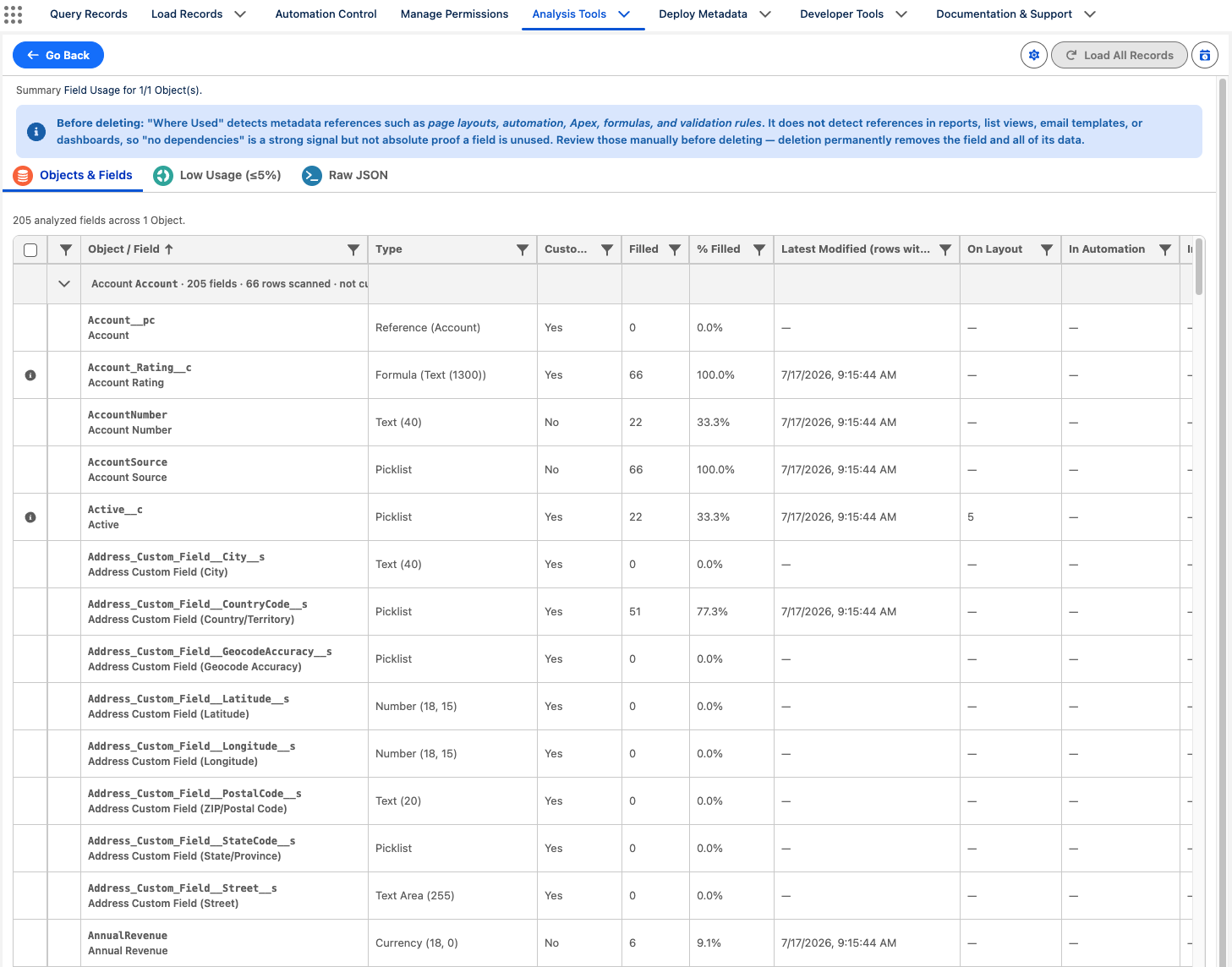
- Objects & Fields — every analyzed field, grouped by object.
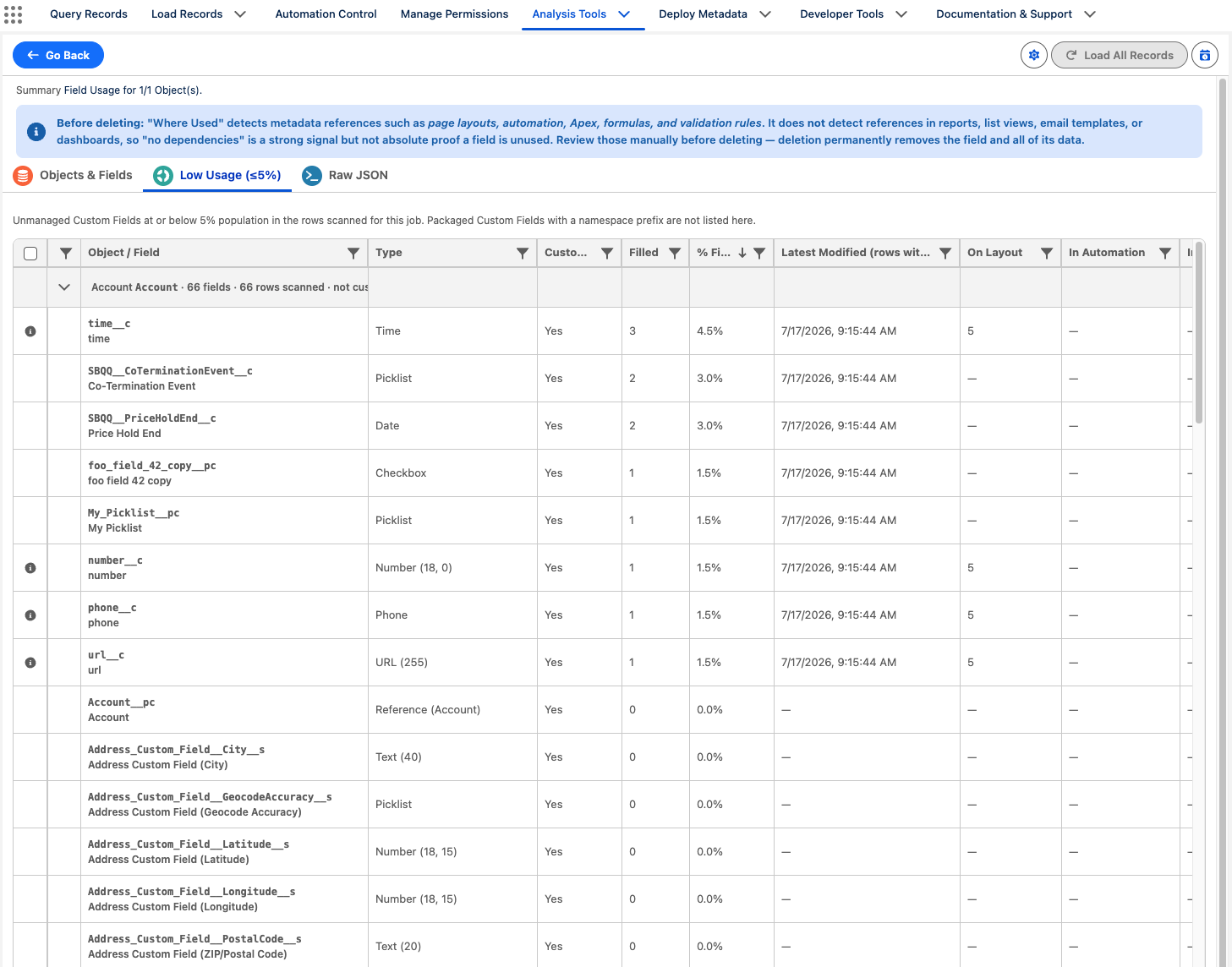
- Low Usage (≤5%) — unmanaged custom fields populated in 5% or fewer of the scanned rows, sorted least-used first. This is the best place to find cleanup candidates. Packaged (namespaced) fields are excluded.
Each field row includes:
| Column | Meaning |
|---|---|
| Object / Field | The field API name and label. |
| Type | The field data type (for example Reference (Account), Checkbox, Number). |
| Custom Field | Whether the field is custom. |
| Filled | The number of records that have a value. |
| % Filled | The percentage populated. A ~ prefix means the scan was truncated and the percentage reflects only scanned rows. |
| Latest Modified (rows with value) | The most recent last-modified date among scanned rows that have a value (row-scanned field types only). |
| On Layout | Number of Where Used references from page layouts, FlexiPages, and field sets. |
| In Automation | Number of references from workflow, process, flow, or triggers. |
| In Apex | Number of references from Apex classes, pages, and components. |
| Where Used | Opens the full dependency list for a custom field (see below). |
Where Used
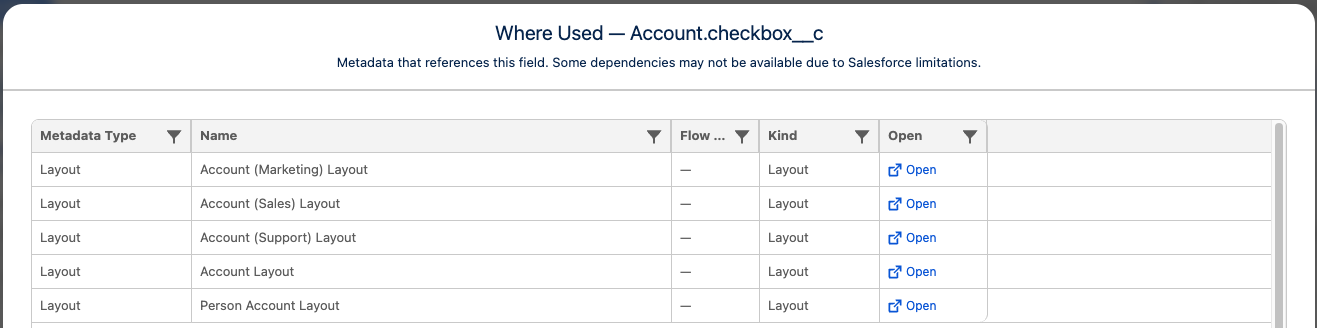
Click Where Used on a custom field to open a modal listing the metadata that references it — page layouts, automation, Apex, formulas, and validation rules — each with an Open link that deep-links into your Salesforce org.
Where Used does not detect references in reports, list views, email templates, or dashboards. So "no dependencies" is a strong signal that a field is unused, but not absolute proof. Review those areas manually before deleting — deletion permanently removes the field and all of its data.
Deleting unused fields
When you have confirmed a custom field is unused, you can delete it without leaving the tool.
- Tick the checkboxes next to the eligible fields on the Objects & Fields or Low Usage tab.
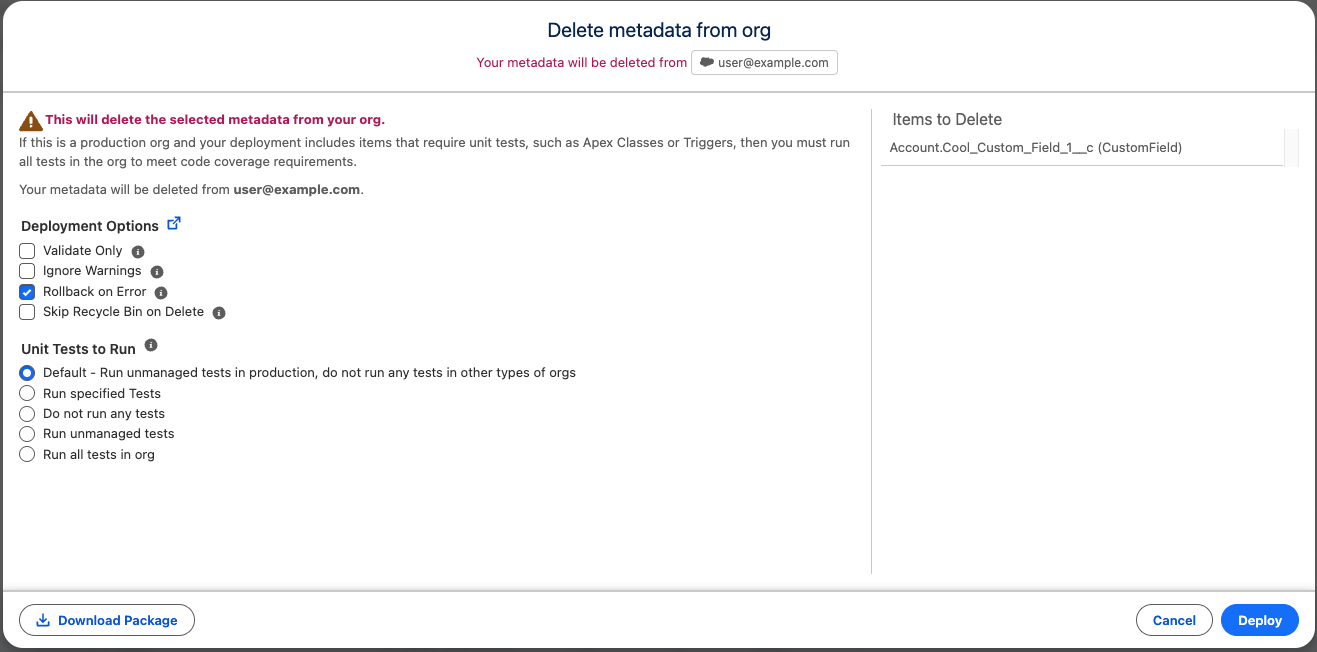
- Open the Field Actions menu and choose Delete Selected Metadata.
- Review and confirm in the delete dialog.
A field is eligible to delete only when all of the following are true:
- It is an unmanaged custom field (no namespace).
- Its scan was not truncated.
- Its Where Used dependencies are known and there are none.
- It has zero populated records.
Rows that are not eligible show an info icon explaining why (for example "Referenced by another component" or "Field has data"). Deleting uses the same destructive deploy flow as Deploy Metadata and permanently removes the field and its data from the org.
If an object's scan was truncated, use Load All Records to start a new job that scans every row (no per-object cap) before deleting. A full scan can take a while and use many API calls, so Jetstream asks you to confirm first. Fields on truncated objects cannot be deleted until you have complete counts.
Exporting the data
To export the underlying records, open an object's popover and choose View query results. This opens the Query Records page in a new tab, pre-loaded with a query of the analyzed fields, where you can export to CSV or Excel.
Re-opening past runs
Use Field Usage history on the selection screen or the results toolbar to reopen a previous run. Runs are stored in your browser, per org, newest first.
See also
- Permission Analysis — audit object, field, tab, and system permissions across profiles and permission sets.
- Query Records — build and export SOQL queries.